> For the complete documentation index, see [llms.txt](https://adaptix-framework.gitbook.io/adaptix-framework/llms.txt). Markdown versions of documentation pages are available by appending `.md` to page URLs; this page is available as [Markdown](https://adaptix-framework.gitbook.io/adaptix-framework/development/axscript/axform-type.md).
# AxForm type
## Namespace Form
The form namespace contains functions and objects for working with UI elements such as buttons, input fields, tables, and dialogs.
All visual elements have the following methods:
* `void setEnabled(bool enable)` - if `enable` == true the element will be enabled, otherwise it will be disabled.
* `void setVisible(bool enable)` - if `enable` is true the element will be visible, otherwise it will be hidden.
* `bool getEnabled()` - returns true if the element is enabled.
* `bool getVisible()` - returns true if the element is visible.
### Connect
AxScript uses QT signal-slot technology. A signal is emitted when a particular event occurs. A slot is a function that is called in response to a particular signal. Qt's signals and slots mechanism ensures that if you connect a signal to a slot, the slot will be called with the signal's parameters at the right time. Signals and slots can take any number of arguments of any type. They are completely type safe.
You can connect as many signals as you want to a single slot, and a signal can be connected to as many slots as you need. It is even possible to connect a signal directly to another signal. (This will emit the second signal immediately whenever the first is emitted.)
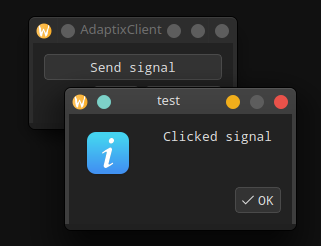
`form.connect(element elem, string signal, function(){})` - Creates a connection from the `signal` in the `elem` object to the `function` handler.
Example
```javascript
let btn = form.create_button("Send signal");
form.connect(btn, "clicked", function(){
ax.show_message("test", "Clicked signal");
});
let layout = form.create_vlayout();
layout.addWidget(btn);
let dialog = form.create_dialog("");
dialog.setLayout(layout);
dialog.exec()
```
### Container
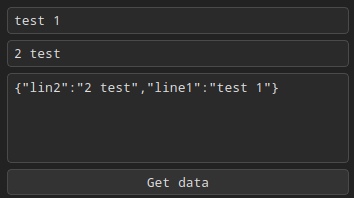
To retrieve data in JSON format from input elements, you must use a `container` object.
```javascript
form.create_container()
```
#### Methods:
{% stepper %}
{% step %}
#### put
```javascript
void container::put(string id, element elem);
```
This method adds an element `elem` with the given `id` to the container.
{% endstep %}
{% step %}
#### get
```javascript
element container::get(string id);
```
This method gets an element from the container by the given `id`.
{% endstep %}
{% step %}
#### contains
```javascript
bool container::contains(string id)
```
This method checks if an element with the given `id` exists in the container.
{% endstep %}
{% step %}
#### remove
```javascript
void container::remove(string id)
```
This method removes the element with the given `id` from the container.
{% endstep %}
{% step %}
#### toJson
```javascript
string container::toJson();
```
This method packs the data of all container elements into JSON format.
{% endstep %}
{% step %}
#### fromJson
```javascript
void container::fromJson(string jsonString);
```
This method recovers the values of elements in a container from a JSON string `jsonString`.
{% endstep %}
{% endstepper %}
Example
```javascript
let tl1 = form.create_textline();
let tl2 = form.create_textline();
let tm3 = form.create_textmulti();
let btn = form.create_button("Get data");
let container = form.create_container()
container.put("line1", tl1)
container.put("lin2", tl2)
form.connect(btn, "clicked", function(){
tm3.setText(container.toJson());
});
let layout = form.create_vlayout();
layout.addWidget(tl1);
layout.addWidget(tl2);
layout.addWidget(tm3);
layout.addWidget(btn);
let dialog = form.create_dialog("");
dialog.setLayout(layout);
dialog.exec()
```
***
## VLayout / HLayout
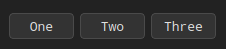
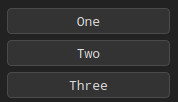
The `vlayout` class lines up elements vertically. The `hlayout` class lines up elements horizontally.
To create a `vlayout`/`hlayout` element, use the `form.create_vlayout()` / `form.create_hlayout()` function.
```javascript
layout form.create_vlayout()
layout form.create_hlayout()
```
#### Methods:
{% stepper %}
{% step %}
#### addWidget
Adds `element` to the end of this box layout.
```javascript
void layout::addWidget(form.object element)
```
{% endstep %}
{% endstepper %}
Example
```javascript
let b1 = form.create_button("One");
let b2 = form.create_button("Two");
let b3 = form.create_button("Three");
let layout = form.create_hlayout();
layout.addWidget(b1);
layout.addWidget(b2);
layout.addWidget(b3);
let dialog = form.create_dialog();
dialog.setLayout(layout);
dialog.exec()
```
```javascript
let b1 = form.create_button("One");
let b2 = form.create_button("Two");
let b3 = form.create_button("Three");
let layout = form.create_vlayout();
layout.addWidget(b1);
layout.addWidget(b2);
layout.addWidget(b3);
let dialog = form.create_dialog("");
dialog.setLayout(layout);
dialog.exec()
```
***
## GridLayout
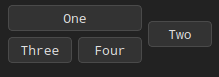
The `gridlayout` class lays out elements in a grid.
To create a `gridlayout` element, use the `form.create_gridlayout()` function.
```javascript
layout form.create_gridlayout()
```
#### Methods:
{% stepper %}
{% step %}
#### addWidget
```javascript
void layout::addWidget(form.object element, int row, int col, int rowSpan = 1, int colSpan = 1)
```
Adds the given `element` to the cell grid, spanning multiple rows/columns. The cell will start at `row`, `col` spanning `rowSpan` rows and `colSpan` columns.
{% endstep %}
{% endstepper %}
Example
```javascript
let b1 = form.create_button("One");
let b2 = form.create_button("Two");
let b3 = form.create_button("Three");
let b4 = form.create_button("Four");
let layout = form.create_gridlayout();
layout.addWidget(b1, 0, 0, 1, 2);
layout.addWidget(b2, 0, 2, 2, 1);
layout.addWidget(b3, 1, 0, 1, 1);
layout.addWidget(b4, 1, 1, 1, 1);
let dialog = form.create_dialog("");
dialog.setLayout(layout);
dialog.exec()
```
***
## VLine / HLine
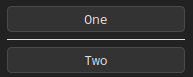
The `line` element is a simple divider cover.
To create a `vline` / `hline` element, use the `form.create_vline()` / `form.create_hline()` function.
```javascript
element form.create_vline()
element form.create_hline()
```
Example
```javascript
let b1 = form.create_button("One");
let b2 = form.create_button("Two");
let line = form.create_hline();
let layout = form.create_vlayout();
layout.addWidget(b1);
layout.addWidget(line);
layout.addWidget(b2);
let dialog = form.create_dialog("");
dialog.setLayout(layout);
dialog.exec()
```
```javascript
let b1 = form.create_button("One");
let b2 = form.create_button("Two");
let line = form.create_vline();
let layout = form.create_hlayout();
layout.addWidget(b1);
layout.addWidget(line);
layout.addWidget(b2);
let dialog = form.create_dialog("");
dialog.setLayout(layout);
dialog.exec()
```
***
## VSpacer / HSpacer
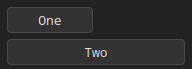
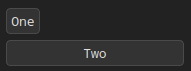
The `spacer` element provides blank space in a layout. Normally, you don't need to use this element directly.
To create a `vspacer` / `hspacer` element, use the `form.create_vline()` / `form.create_hline()` function.
```javascript
element form.create_hline()
element form.create_vspacer()
```
Example
Basic
```javascript
let b1 = form.create_button("One");
let b2 = form.create_button("Two");
let layout = form.create_gridlayout();
layout.addWidget(b1, 0, 0, 1, 1);
layout.addWidget(b2, 1, 0, 1, 2);
let dialog = form.create_dialog("");
dialog.setLayout(layout);
dialog.exec()
```
With hspacer
```javascript
let b1 = form.create_button("One");
let b2 = form.create_button("Two");
let spacer = form.create_hspacer();
let layout = form.create_gridlayout();
layout.addWidget(b1, 0, 0, 1, 1);
layout.addWidget(spacer, 0, 1, 1, 1);
layout.addWidget(b2, 1, 0, 1, 2);
let dialog = form.create_dialog("");
dialog.setLayout(layout);
dialog.exec()
```
***
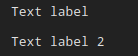
## Label
The `label` element provides a text display.
`element create_label(string text = "")` - Constructs a label that displays the text, `text`.
#### Methods:
{% stepper %}
{% step %}
#### text
```javascript
string label::text();
```
This property holds the label's text. If no text has been set this will return an empty string.
{% endstep %}
{% step %}
#### setText
```javascript
void label::setText(string text);
```
This method sets the label text, `text`.
{% endstep %}
{% endstepper %}
Example
```javascript
let l1 = form.create_label("Text label");
let l2 = form.create_label();
l2.setText(l1.text() + " 2");
let layout = form.create_vlayout();
layout.addWidget(l1);
layout.addWidget(l2);
let dialog = form.create_dialog("");
dialog.setLayout(layout);
dialog.exec()
```
***
## TextLine
The `textline` element is a one-line text editor.
`element create_textline(string text = "")` - Constructs a textline containing the text, `text`.
#### Methods:
{% stepper %}
{% step %}
#### text
```javascript
string textline::text();
```
This property holds the textline's text. If no text has been set this will return an empty string.
{% endstep %}
{% step %}
#### setText
```javascript
void textline::setText(string text);
```
This method sets the textline text, `text`.
{% endstep %}
{% step %}
#### setPlaceholder
```javascript
void textline::setPlaceholder(string text);
```
This method sets the textline placeholder text, `text`.
{% endstep %}
{% step %}
#### setReadOnly
```javascript
void textline::setReadOnly(bool readonly);
```
This method holds whether the textline is read-only.
{% endstep %}
{% endstepper %}
#### Signals:
{% stepper %}
{% step %}
#### textChanged
```javascript
textChanged(string text)
```
This signal is emitted whenever the text changes. The `text` argument is the new text.
{% endstep %}
{% step %}
#### textEdited
```javascript
textEdited(string text)
```
This signal is emitted whenever the text is edited. The `text` argument is the new text.
{% endstep %}
{% step %}
#### returnPressed
```javascript
returnPressed()
```
This signal is emitted when the Return or Enter key is used.
{% endstep %}
{% step %}
#### editingFinished
```javascript
editingFinished()
```
This signal is emitted when the Return or Enter key is used, or if the textline loses focus and its contents have changed since the last time this signal was emitted.
{% endstep %}
{% endstepper %}
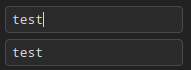
Example
```javascript
let tl1 = form.create_textline();
let tl2 = form.create_textline();
tl2.setPlaceholder("test signal");
form.connect(tl1, "textEdited", function(text){
tl2.setText(tl1.text());
});
let layout = form.create_vlayout();
layout.addWidget(tl1);
layout.addWidget(tl2);
let dialog = form.create_dialog("");
dialog.setLayout(layout);
dialog.exec()
```
***
## TextMulti
The `textmulti` element provides a widget that is used to edit and display text.
`element create_textmulti(string text = "")` - Constructs a textmulti containing the text, `text`.
#### Methods:
{% stepper %}
{% step %}
#### text
```javascript
string textmulti::text();
```
This property holds the textmulti's text. If no text has been set this will return an empty string.
{% endstep %}
{% step %}
#### setText
```javascript
void textmulti::setText(string text);
```
This method sets the textmulti text, `text`.
{% endstep %}
{% step %}
#### appendText
```javascript
void appendText(string text)
```
Appends a new paragraph with `text` to the end of the textmulti.
{% endstep %}
{% step %}
#### setPlaceholder
```javascript
void textmulti::setPlaceholder(string text);
```
This method sets the textmulti placeholder text, `text`.
{% endstep %}
{% step %}
#### setReadOnly
```javascript
void textmulti::setReadOnly(bool readonly);
```
This method holds whether the textmulti is read-only.
{% endstep %}
{% endstepper %}
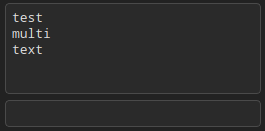
Example
```javascript
let tl1 = form.create_textmulti("test\nmulti\ntext");
let tl2 = form.create_textline();
let layout = form.create_vlayout();
layout.addWidget(tl1);
layout.addWidget(tl2);
let dialog = form.create_dialog("");
dialog.setLayout(layout);
dialog.exec()
```
***
## DateLine
The `dateline` element provides a widget for editing dates.
`element create_dateline(string format = "dd.MM.yyyy")` - Constructs a `dateline`. The `format` used to display the date of the date edit.
#### Methods:
{% stepper %}
{% step %}
#### dateString
```javascript
string dateline::dateString();
```
This method return the date that is set in the element.
{% endstep %}
{% step %}
#### setDateString
```javascript
void dateline::setDateString(string date);
```
This method set the date in the element.
{% endstep %}
{% endstepper %}
Example
```javascript
let tl1 = form.create_dateline("dd/MM/yyyy");
let layout = form.create_vlayout();
layout.addWidget(tl1);
let dialog = form.create_dialog("");
dialog.setLayout(layout);
dialog.exec()
```
***
## TimeLine
The `timeline` element provides a widget for editing times.
`element create_dateline(string format = "HH:mm.yyyy")` - Constructs a `timeline`. The `format` used to display the time of the time edit.
#### Methods:
{% stepper %}
{% step %}
#### timeString
```javascript
string timeline::timeString();
```
This method return the time that is set in the element.
{% endstep %}
{% step %}
#### setTimeString
```javascript
void timeline::setTimeString(string time);
```
This method set the time in the element.
{% endstep %}
{% endstepper %}
Example
```javascript
let tl1 = form.create_timeline("HH:mm");
let layout = form.create_vlayout();
layout.addWidget(tl1);
let dialog = form.create_dialog("");
dialog.setLayout(layout);
dialog.exec()
```
***
## Combo
The `combo` element combines a button with a dropdown list.
`element create_combo()` - Constructs a `combo`.
#### Methods:
{% stepper %}
{% step %}
#### addItem
```javascript
void combo::addItem(string text);
```
Adds an item to the `combo` with the given `text`.
{% endstep %}
{% step %}
#### addItems
```javascript
void combo::addItems(string[] array);
```
Adds each of the strings in the given `array` to the `combo`. Each item is appended to the list of existing items in turn.
{% endstep %}
{% step %}
#### setItems
```javascript
void combo::setItems(string[] array);
```
Clears the `combo` and adds each of the strings in the given `array` to the `combo`.
{% endstep %}
{% step %}
#### clear
```javascript
void combo::clear();
```
Clears the `combo`.
{% endstep %}
{% step %}
#### currentText
```javascript
string combo::currentText();
```
This method set the current text.
{% endstep %}
{% step %}
#### setCurrentIndex
```javascript
void combo::setCurrentIndex(int index);
```
This method set the current item by the index.
{% endstep %}
{% step %}
#### currentIndex
```javascript
int combo::currentIndex();
```
This method return the index of the current item.
{% endstep %}
{% endstepper %}
#### Signals:
{% stepper %}
{% step %}
#### currentTextChanged
```javascript
currentTextChanged(string text);
```
This signal is emitted whenever currentText changes. The new value is passed as *text*.
{% endstep %}
{% step %}
#### currentIndexChanged
```javascript
currentIndexChanged(int index);
```
This signal is emitted whenever currentIndex changes. The new index is passed as number.
{% endstep %}
{% endstepper %}
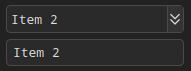
Example
```javascript
let c1 = form.create_combo();
c1.setItems(["Item 1", "Item 2", "Item 3"]);
let tl2 = form.create_textline();
tl2.setReadOnly(true);
form.connect(c1, "currentTextChanged", function(text){
tl2.setText(c1.currentText());
});
let layout = form.create_vlayout();
layout.addWidget(c1);
layout.addWidget(tl2);
let dialog = form.create_dialog("");
dialog.setLayout(layout);
dialog.exec()
```
***
## Spin
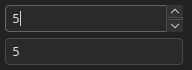
The `spin` element provides a spin box widget.
`element create_spin()` - Constructs a `spin` with 0 as minimum value and 99 as maximum value, a step value of 1. The value is initially set to 0.
#### Methods:
{% stepper %}
{% step %}
#### value
```javascript
int spin::value();
```
This method return the value of the `spin`.
{% endstep %}
{% step %}
#### setValue
```javascript
void spin::setValue(int value);
```
This method set the value of the `spin`.
{% endstep %}
{% step %}
#### setRange
```javascript
void spin::setRange(int min, int max);
```
Convenience method to set the `min`, and `max` values with a single function call.
{% endstep %}
{% endstepper %}
#### Signals:
{% stepper %}
{% step %}
#### valueChanged
```javascript
valueChanged(int);
```
This signal is emitted whenever the `spin`'s value is changed. The new value's passed as integer value.
{% endstep %}
{% endstepper %}
Example
```javascript
let c1 = form.create_spin();
c1.setRange(1,10);
let tl2 = form.create_textline();
tl2.setReadOnly(true);
form.connect(c1, "valueChanged", function(value){
tl2.setText(value);
});
let layout = form.create_vlayout();
layout.addWidget(c1);
layout.addWidget(tl2);
let dialog = form.create_dialog("");
dialog.setLayout(layout);
dialog.exec()
```
***
## Check
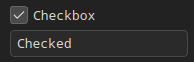
The `check` element provides a checkbox with a text label.
`element create_check(string label= "")` - Constructs a checkbox with the given `text`.
#### Methods:
{% stepper %}
{% step %}
#### isChecked
```javascript
bool check::isChecked();
```
This method return true if the button is checked.
{% endstep %}
{% step %}
#### setChecked
```javascript
void check::setChecked(bool checked);
```
This method sets the checked state.
{% endstep %}
{% endstepper %}
#### Signals:
{% stepper %}
{% step %}
#### stateChanged
```javascript
stateChanged();
```
This signal is emitted whenever the `check` state changes, i.e., whenever the user checks or unchecks it.
{% endstep %}
{% endstepper %}
Example
```javascript
let c1 = form.create_check("Checkbox");
let tl2 = form.create_textline();
tl2.setReadOnly(true);
form.connect(c1, "stateChanged", function(){
if(c1.isChecked())
tl2.setText("Checked");
else
tl2.setText("UnChecked");
});
let layout = form.create_vlayout();
layout.addWidget(c1);
layout.addWidget(tl2);
let dialog = form.create_dialog("");
dialog.setLayout(layout);
dialog.exec()
```
***
## Button
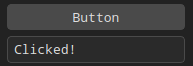
The `button` element provides a command button.
`element create_button(string text= "")` - Constructs a `button` with the text `text`.
#### Signals:
{% stepper %}
{% step %}
#### clicked
```javascript
clicked();
```
This signal is emitted when the button is activated.
{% endstep %}
{% endstepper %}
Example
```javascript
let c1 = form.create_button("Button");
let tl2 = form.create_textline();
tl2.setReadOnly(true);
form.connect(c1, "clicked", function(){
tl2.setText("Clicked!");
});
let layout = form.create_vlayout();
layout.addWidget(c1);
layout.addWidget(tl2);
let dialog = form.create_dialog("");
dialog.setLayout(layout);
dialog.exec()
```
***
## List
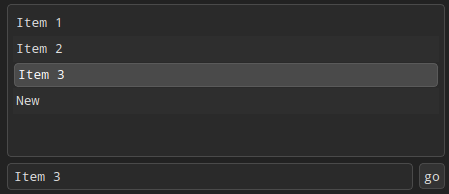
The `list` element provides an item-based list widget.
`element create_list()` - Constructs an empty `list`.
#### Methods:
{% stepper %}
{% step %}
#### items
```javascript
string[] list::items();
```
Returns an array of elements.
{% endstep %}
{% step %}
#### addItem
```javascript
void list::addItem(string item);
```
Inserts the `item` at the end of the list widget.
{% endstep %}
{% step %}
#### addItems
```javascript
void list::addItems(string[] items);
```
Inserts `items` at the end of the list widget.
{% endstep %}
{% step %}
#### removeItem
```javascript
void list::removeItem(int index);
```
Removes the element at the specified index.
{% endstep %}
{% step %}
#### itemText
```javascript
string list::itemText(int index);
```
Return the element at the specified index.
{% endstep %}
{% step %}
#### setItemText
```javascript
void list::setItemText(int index, string text);
```
Set the item at the specified index.
{% endstep %}
{% step %}
#### clear
```javascript
void list::clear();
```
Removes all items and selections.
{% endstep %}
{% step %}
#### count
```javascript
int list::count();
```
This method return the number of items in the list including any hidden items.
{% endstep %}
{% step %}
#### currentRow
```javascript
int list::currentRow();
```
This method return the row of the current item.
{% endstep %}
{% step %}
#### setCurrentRow
```javascript
void list::setCurrentRow(int row);
```
This method sets the row of the current element at the specified index.
{% endstep %}
{% step %}
#### selectedRows
```javascript
string[] list::selectedRows();
```
Returns an array of selected elements.
{% endstep %}
{% step %}
#### setReadOnly
```javascript
void list::setReadOnly(bool readonly);
```
This method holds whether the `list` is read-only.
{% endstep %}
{% endstepper %}
#### Signals:
{% stepper %}
{% step %}
#### currentTextChanged
```javascript
currentTextChanged(string currentText);
```
This signal is emitted whenever the current item changes. `currentText` is the text data in the current item. If there is no current item, the `currentText` is invalid.
{% endstep %}
{% step %}
#### currentRowChanged
```javascript
currentRowChanged(int currentRow);
```
This signal is emitted whenever the current item changes. `currentRow` is the row of the current item. If there is no current item, the `currentRow` is -1.
{% endstep %}
{% step %}
#### itemClickedText
```javascript
itemClickedText(string text);
```
This signal is emitted with the specified `text` when a mouse button is clicked on an item in the `list`.
{% endstep %}
{% step %}
#### itemDoubleClickedText
```javascript
itemDoubleClickedText(string text);
```
This signal is emitted with the specified `text` when a mouse button is double clicked on an item in the `list`.
{% endstep %}
{% endstepper %}
Example
```javascript
let listw = form.create_list();
listw.addItems(["Item 1", "Item 2", "Item 3"]);
listw.addItem("New");
let text_line = form.create_textline(listw.count())
let text_button = form.create_button("go");
form.connect(text_button, "clicked", function (){
text_line.setText(listw.items());
})
form.connect(listw, "itemClicked", function (text){
text_line.setText(text);
})
let layout = form.create_gridlayout();
layout.addWidget(listw, 0, 0, 1, 2);
layout.addWidget(text_line, 1, 0, 1, 1);
layout.addWidget(text_button, 1, 1, 1, 1);
let dialog = form.create_dialog("");
dialog.setSize(460, 240);
dialog.setLayout(layout);
dialog.exec()
```
***
## Table
The `table` elements provides an item-based table view.
`element create_table(string[] headers)` - Creates a new `table` view with the given headers.
#### Methods:
{% stepper %}
{% step %}
#### addColumn
```javascript
void table::addColumn(string header);
```
This method adds a new column to the table with the specified `header`.
{% endstep %}
{% step %}
#### setColumns
```javascript
void table::setColumns(string[] headers);
```
This method adds new columns to the table with the specified `headers`.
{% endstep %}
{% step %}
#### addItem
```javascript
void table::addItems(string[] item);
```
Inserts `item` at the end of the table, `item` is an array of strings, the string index corresponds to the column index.
{% endstep %}
{% step %}
#### rowCount
```javascript
int table::rowCount();
```
Returns the number of rows.
{% endstep %}
{% step %}
#### columnCount
```javascript
int table::columnCount();
```
Returns the number of columns.
{% endstep %}
{% step %}
#### text
```javascript
string table::text(int row, int column);
```
This property contains the cell text for the specified `row` and `column`. If no text is specified, an empty string is returned.
{% endstep %}
{% step %}
#### setItemText
```javascript
void table::setText(int row, int column, string text);
```
Set the cell text for the specified `row` and `column`.
{% endstep %}
{% step %}
#### clear
```javascript
void table::clear();
```
Removes all items from table.
{% endstep %}
{% step %}
#### setRowCount
```javascript
void table::setRowCount(int rows);
```
Sets the number of `rows` in this `table`'s.
{% endstep %}
{% step %}
#### setColumnCount
```javascript
void table::setColumnCount(int cols);
```
Sets the number of `cols` in this `table`'s.
{% endstep %}
{% step %}
#### currentRow
```javascript
int table::currentRow();
```
This method return the row of the current cell.
{% endstep %}
{% step %}
#### currentColumn
```javascript
int table::currentColumn();
```
This method return the column of the current cell.
{% endstep %}
{% step %}
#### hideColumn
```javascript
void table::hideColumn(int columns);
```
Hide the given `column`.
{% endstep %}
{% step %}
#### selectedRows
```javascript
string[][] table::selectedRows();
```
Returns an array of arrays of the selected elements.
{% endstep %}
{% step %}
#### setReadOnly
```javascript
void table::setReadOnly(bool readonly);
```
This method holds whether the `table` is read-only.
{% endstep %}
{% step %}
#### setSortingEnabled
```javascript
void table::setSortingEnabled(bool enable);
```
If *enable* is true, enables sorting for the table
{% endstep %}
{% step %}
#### resizeToContent
```javascript
void table::resizeToContent(int column);
```
Will automatically resize the section to its optimal size based on the contents of the entire `column`.
{% endstep %}
{% step %}
#### setHeadersVisible
```javascript
void table::setHeadersVisible(const bool enable)
```
If `enable` is true, the column in the table will be visible, otherwise hidden.
{% endstep %}
{% step %}
#### setColumnAlign
```javascript
void table::setColumnAlign(int column, string align);
```
Sets the alignment in the `column`. Available values are "left", "right", "center".
{% endstep %}
{% endstepper %}
#### Signals:
{% stepper %}
{% step %}
#### cellChanged
```javascript
cellChanged(int row, int column)
```
This signal is emitted whenever the data of the item in the cell specified by `row` and `column` has changed.
{% endstep %}
{% step %}
#### cellClicked
```javascript
cellClicked(int row, int column);
```
This signal is emitted whenever a cell in the table is clicked. The `row` and `column` specified is the cell that was clicked.
{% endstep %}
{% step %}
#### cellDoubleClicked
```javascript
cellDoubleClicked(int row, int column);
```
This signal is emitted whenever a cell in the table is double clicked. The `row` and `column` specified is the cell that was double clicked.
{% endstep %}
{% endstepper %}
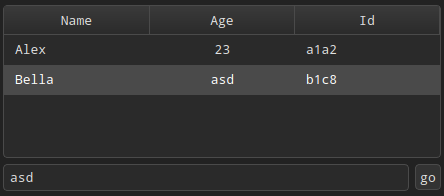
Example
```javascript
let table = form.create_table(["Name", "Age", "Id"])
table.addItem(["Alex", "23", "a1a2"]);
table.addItem(["Bella", "37", "b1c8"]);
table.setColumnAlign(1, "center");
let text_line = form.create_textline(table.columnCount())
let text_button = form.create_button("go");
form.connect(text_button, "clicked", function (){
text_line.setText(table.selectedRows());
})
form.connect(table, "cellChanged", function (row, column){
text_line.setText(table.text(row, column));
})
let layout = form.create_gridlayout();
layout.addWidget(table, 0, 0, 1, 2);
layout.addWidget(text_line, 1, 0, 1, 1);
layout.addWidget(text_button, 1, 1, 1, 1);
let dialog = form.create_dialog("");
dialog.setSize(460, 240);
dialog.setLayout(layout);
dialog.exec()
```
***
## Panel
The `panel` element provides a placement of other elements using layout.
`element create_panel()` - Constructs a `panel`.
#### Methods:
{% stepper %}
{% step %}
#### setLayout
```
void panel::setLayout(layout lt);
```
Sets the layout manager for this element to `lt`.
{% endstep %}
{% endstepper %}
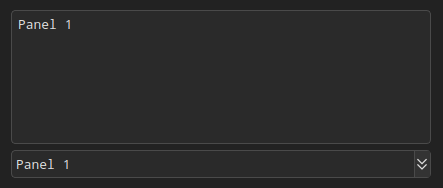
Example
```javascript
let text_multi1 = form.create_textmulti("Panel 1");
let combo_w = form.create_combo();
combo_w.setItems(["Panel 1", "Panel 2"]);
let layout1 = form.create_gridlayout();
layout1.addWidget(text_multi1, 0, 0, 1, 1);
layout1.addWidget(combo_w, 1, 0, 1, 1);
let panel = form.create_panel();
panel.setLayout(layout1);
let layout = form.create_gridlayout();
layout.addWidget(panel, 0, 0, 1, 1);
let dialog = form.create_dialog("");
dialog.setSize(460, 240);
dialog.setLayout(layout);
dialog.exec()
```
***
## GroupBox
The `groupbox` element provides a group box frame with a title.
`element create_groupbox(string title, bool checkable)` - Constructs a `groupbox` with the given `title`. Property `checkable` holds whether the group box has a checkbox in its title.
#### Methods:
{% stepper %}
{% step %}
#### isChecked
```javascript
bool groupbox::isChecked();
```
This method return true if the checkbox is checked.
{% endstep %}
{% step %}
#### setChecked
```javascript
void groupbox::setChecked(bool checked);
```
This method sets the checked state.
{% endstep %}
{% step %}
#### isCheckable
```javascript
bool groupbox::isCheckable();
```
If this property is `true`, the group box displays its title using a checkbox in place of an ordinary label.
{% endstep %}
{% step %}
#### setCheckable
```javascript
void groupbox::setCheckable(bool checkable);
```
If `checkable` is `true`, the group box displays its title using a checkbox in place of an ordinary label.
{% endstep %}
{% step %}
#### setTitle
```javascript
void groupbox::setTitle(string title);
```
This method sets the title text of the group box.
{% endstep %}
{% step %}
#### setPanel
```javascript
void groupbox::setPanel(element panel);
```
This method sets an element inside a `groupbox`.
{% endstep %}
{% endstepper %}
#### Signals:
{% stepper %}
{% step %}
#### clicked
```javascript
clicked(bool checked = false);
```
This signal is emitted when the check box is activated
{% endstep %}
{% endstepper %}
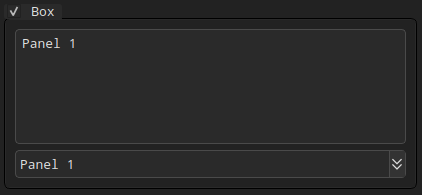
Example
```javascript
let text_multi1 = form.create_textmulti("Panel 1");
let combo_w = form.create_combo();
combo_w.setItems(["Panel 1", "Panel 2"]);
let layout1 = form.create_gridlayout();
layout1.addWidget(text_multi1, 0, 0, 1, 1);
layout1.addWidget(combo_w, 1, 0, 1, 1);
let panel = form.create_panel();
panel.setLayout(layout1);
let group_box = form.create_groupbox("Box", true);
group_box.setPanel(panel);
form.connect(group_box, "clicked", function (checked){
panel.setEnabled(checked);
})
let layout = form.create_gridlayout();
layout.addWidget(group_box, 0, 0, 1, 1);
let dialog = form.create_dialog("");
dialog.setSize(460, 240);
dialog.setLayout(layout);
dialog.exec()
```
***
## ScrollArea
The `scrollarea` element provides a scrolling view onto another elements.
`element create_scrollarea()` - Constructs an empty `scrollarea`.
#### Methods:
{% stepper %}
{% step %}
#### setWidgetResizable
```javascript
void scrollarea::setWidgetResizable(bool resizable);
```
This property holds whether the `scrollarea` should resize the view element.
{% endstep %}
{% step %}
#### setPanel
```javascript
void scrollarea::setPanel(element panel);
```
This method sets an element inside a `scrollarea`.
{% endstep %}
{% endstepper %}
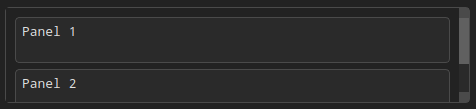
Example
```javascript
let text_multi1 = form.create_textmulti("Panel 1");
let text_multi2 = form.create_textmulti("Panel 2");
let combo_w = form.create_combo();
combo_w.setItems(["Panel 1", "Panel 2"]);
let layout1 = form.create_gridlayout();
layout1.addWidget(text_multi1, 0, 0, 1, 1);
layout1.addWidget(text_multi2, 1, 0, 1, 1);
layout1.addWidget(combo_w, 2, 0, 1, 1);
let panel = form.create_panel();
panel.setLayout(layout1);
const scroll = form.create_scrollarea();
scroll.setPanel(panel);
let layout = form.create_gridlayout();
layout.addWidget(scroll, 0, 0, 1, 1);
let dialog = form.create_dialog("");
dialog.setSize(460, 240);
dialog.setLayout(layout);
dialog.exec()
```
***
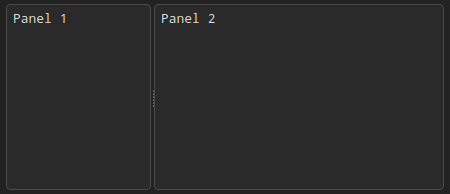
## VSplitter / HSplitter
The `splitter` element implements a splitter widget.
To create a `vsplitter` / `hsplitter` element, use the `create_vsplitter()` / `form.create_hsplitter()` function.
#### Methods:
{% stepper %}
{% step %}
#### setSizes
```javascript
void splitter::setSizes(int[] sizes);
```
Sets the child elements respective sizes to the values given in the `sizes`.
{% endstep %}
{% step %}
#### addPage
```javascript
void splitter::addPage(element elem);
```
Adds the given `elem` to the splitter's layout after all the other items.
{% endstep %}
{% endstepper %}
#### Signals:
{% stepper %}
{% step %}
#### splitterMoved
```javascript
splitterMoved(int pos, int index)
```
This signal is emitted when the splitter handle at a particular `index` has been moved to position `pos`.
{% endstep %}
{% endstepper %}
Example
```javascript
let text_multi1 = form.create_textmulti("Panel 1");
let text_multi2 = form.create_textmulti("Panel 2");
let splitter = form.create_hsplitter();
splitter.addPage(text_multi1);
splitter.addPage(text_multi2);
splitter.setSizes([100, 200]);
let layout = form.create_gridlayout();
layout.addWidget(splitter, 0, 0, 1, 1);
let dialog = form.create_dialog("");
dialog.setSize(460, 240);
dialog.setLayout(layout);
dialog.exec()
```
***
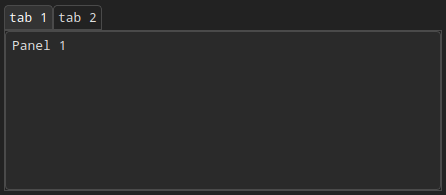
## Tabs
The `tabs` element provides a stack of tabbed widgets.
`element form.create_tabs()` - Constructs a `tabs` element.
#### Methods:
{% stepper %}
{% step %}
#### addTab
```javascript
void tabs::addTab(element elem, string title)
```
Adds a tab with the given `elem` and `title` to the `tabs`.
{% endstep %}
{% endstepper %}
Example
```javascript
let text_multi1 = form.create_textmulti("Panel 1");
let text_multi2 = form.create_textmulti("Panel 2");
let tabs = form.create_tabs();
tabs.addTab(text_multi1, "tab 1");
tabs.addTab(text_multi2, "tab 2");
let layout = form.create_gridlayout();
layout.addWidget(tabs, 0, 0, 1, 1);
let dialog = form.create_dialog("");
dialog.setSize(460, 240);
dialog.setLayout(layout);
dialog.exec()
```
***
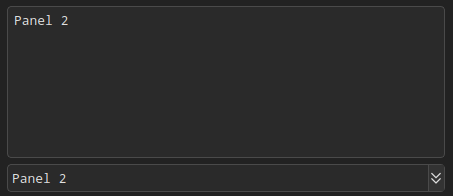
## Stack
The `stack` element provides a stack of widgets where only one widget is visible at a time.
`element create_stack()` - Constructs a `stack`.
#### Methods:
{% stepper %}
{% step %}
#### addPage
```javascript
int stack::addPage(element page);
```
Appends the given `page` to the `stask` and returns the index position.
{% endstep %}
{% step %}
#### insertPage
```javascript
int stack::insertPage(int index, element page);
```
Inserts the given `page` at the given `index` in the `stack`.
{% endstep %}
{% step %}
#### removePage
```javascript
void stack::removePage(int index);
```
Removes element from the `stack` by `index`.
{% endstep %}
{% step %}
#### setCurrentIndex
```javascript
void stack::setCurrentIndex(int index);
```
This method set the `index` position of the widget that is visible;
{% endstep %}
{% step %}
#### currentIndex
```javascript
int stack::currentIndex();
```
This method return the `index` position of the widget that is visible;
{% endstep %}
{% step %}
#### count
```javascript
int stack::count();
```
This method return the number of elements contained by this `stack`.
{% endstep %}
{% endstepper %}
#### Signals:
{% stepper %}
{% step %}
#### currentChanged
```javascript
currentChanged(int index);
```
This signal is emitted whenever the current element changes.
{% endstep %}
{% endstepper %}
Example
```javascript
let text_multi1 = form.create_textmulti("Panel 1");
let text_multi2 = form.create_textmulti("Panel 2");
let stack_w = form.create_stack();
stack_w.addPage(text_multi1);
stack_w.addPage(text_multi2);
let combo_w = form.create_combo();
combo_w.setItems(["Panel 1", "Panel 2"]);
form.connect(combo_w, "currentIndexChanged", function (index){
stack_w.setCurrentIndex(index);
})
let layout = form.create_gridlayout();
layout.addWidget(stack_w, 0, 0, 1, 1);
layout.addWidget(combo_w, 1, 0, 1, 1);
let dialog = form.create_dialog("");
dialog.setSize(460, 240);
dialog.setLayout(layout);
dialog.exec()
```
***
## Dialog
The `dialog` element is implement of dialog windows.
`dialog create_dialog(string title)` - Constructs a `dialog` with `title`.
#### Methods:
{% stepper %}
{% step %}
#### setButtonsText
```javascript
void dialog::setButtonsText(string ok_text, string cancel_text);
```
This method sets the text `ok_text` for button OK and the text `cancel_text` for button CANCEL.
{% endstep %}
{% step %}
#### setSize
```javascript
void dialog::setSize(int w, int h)
```
This method sets the size for the window.
{% endstep %}
{% step %}
#### setLayout
```javascript
void dialog::setLayout(layout lt);
```
Sets the layout manager for this window.
{% endstep %}
{% step %}
#### close
```javascript
void dialog::close();
```
Close window.
{% endstep %}
{% step %}
#### exec
```javascript
bool dialog::exec();
```
Shows the dialog as a modal dialog, blocking until the user closes it. If the window is closed by pressing the OK button, the method will return true.
{% endstep %}
{% endstepper %}
***